
Context: I want a computer to log in automatically log in to an account when it is turned on
Resolution: Configure Registry to enable automatic login to specified account details
Notes:
- The username and password of the account being used for automatic log in will be freely viewable to anyone who accesses the Registry Editor. As such, this guide should only be used for shared/non sensitive accounts.
- For this to work, the account being used must have been signed in on the device but does not have to be the active account.
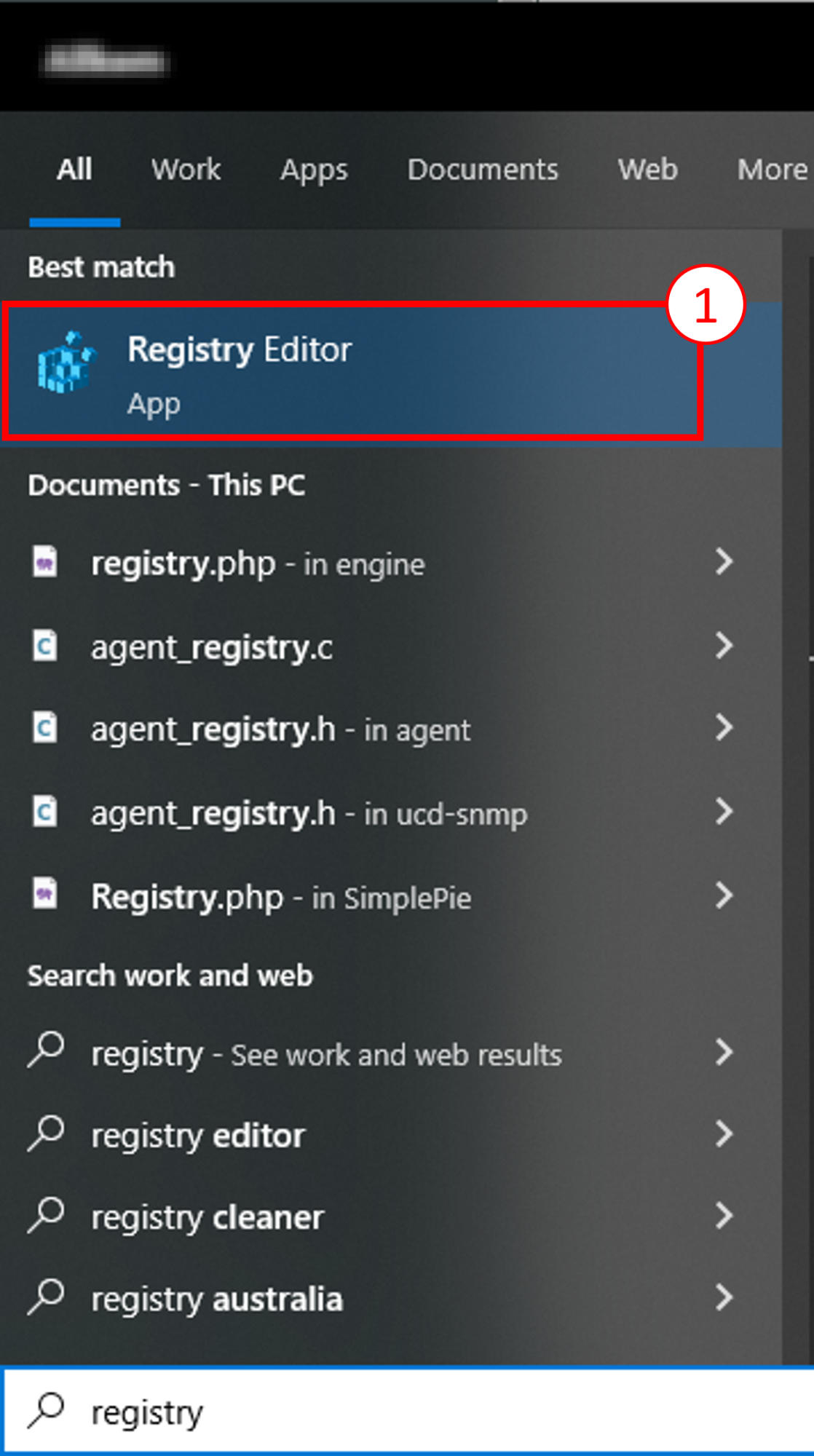
1. Open up the Registry Editor
There are two options for step 2
2a. Copy and paste the following path into the navigation bar: "HKEY_LOCAL_MACHINE\SOFTWARE\Microsoft\Windows NT\CurrentVersion\Winlogon"
2b. Make your way through the file navigation tree through the path in step 2a
3. Create a new string value by clicking Edit > New > String Value
4. Name the string value to "DefaultUserName". Double click the name to configure the HKEY.
5. Enter a username into the value field of the popup window and click ok. In this example, I used the username svc.zoom.
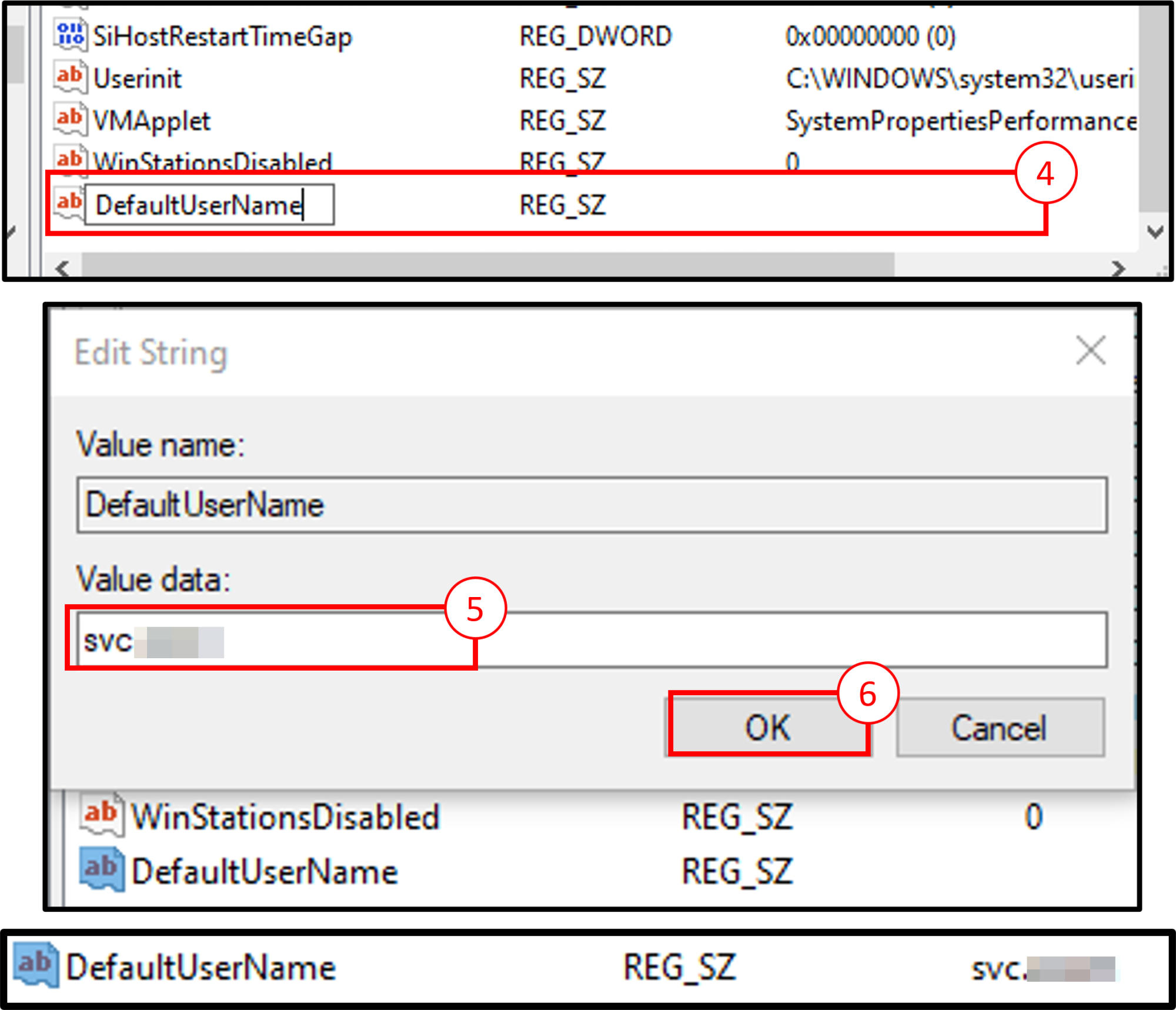
6/7. Similar to steps 3 to 5, create HKEYs for:
a) DefaultDomainName (Leave value empty for no domain)
b) DefaultPassword (Enter the password for the account that is to be automatically signed in to. This password is viewable by anyone and so should not be sensitive)
c) AutoAdminLogon (Set value to 1. This HKEY may already exist, if so just ensure the value is set to 1)
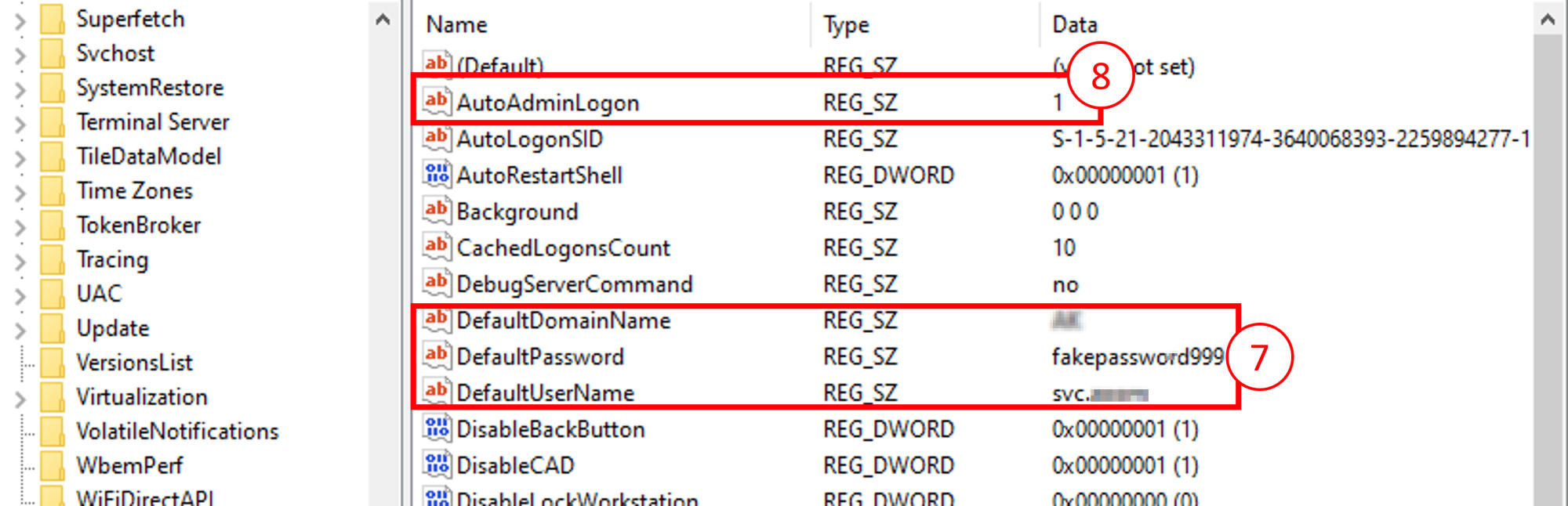
8. Restart the computer. It should automatically log in using the credentials set.
In summary,
Open the Registry editor
Navigate to: HKEY_LOCAL_MACHINE\SOFTWARE\Microsoft\Windows NT\CurrentVersion\Winlogon
Create new string value with name: "DefaultUserName", value: <account username>
Create new string value with name: "DefaultPassword", value: <account password>
Create New string value with name: "DefaultDomainname", value: <empty or domain prefix>
Set HKEY "AutoAdminLogon" value from 0 to 1
Useful sources: